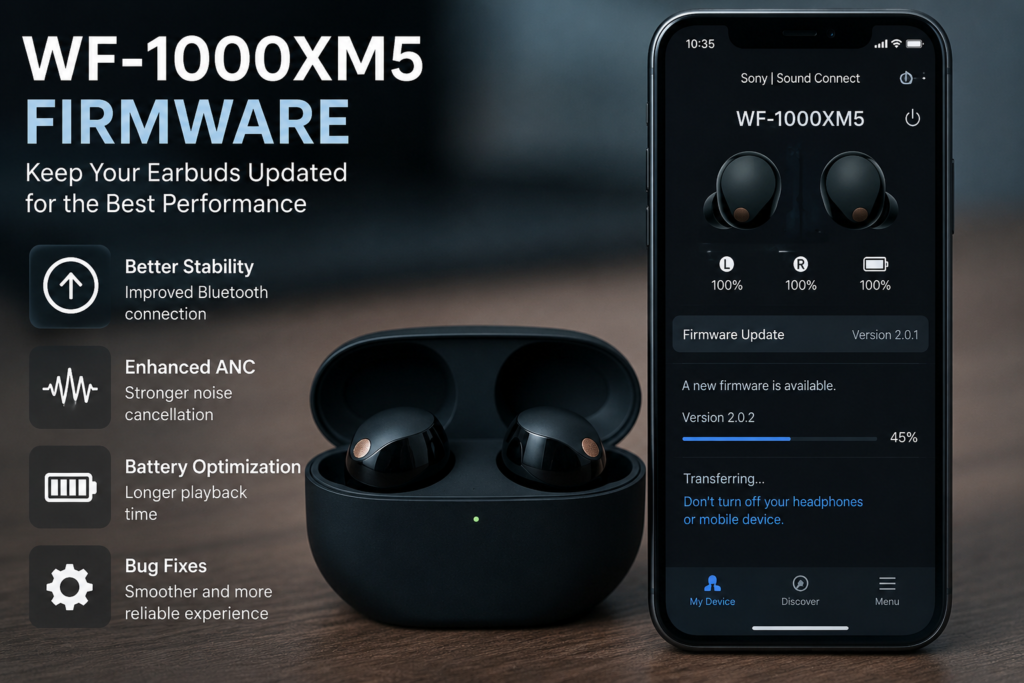

I still remember the first time my Sony WF-1000XM5 earbuds started acting a little strange. The battery seemed to drain faster than usual, and the Bluetooth connection occasionally dropped while I was walking. At first, I thought something was wrong with the earbuds themselves. Then I noticed there was a new WF-1000XM5 firmware update available in the Sony Sound Connect app.
I installed it, crossed my fingers, and hoped for the best.
To my surprise, the update solved most of the issues I was experiencing. Since then, I’ve made it a habit to keep my earbuds updated whenever Sony releases new firmware. If you’re wondering whether you should update your WF-1000XM5 firmware or simply want to understand what firmware actually does, you’re in the right place.
Let’s dive into everything you should know.
What Is WF-1000XM5 Firmware?
Firmware is the built-in software that controls how your Sony WF-1000XM5 earbuds operate. Think of it as the operating system for your earbuds.
Unlike the Sony Sound Connect app, firmware is installed directly on the earbuds. Sony releases firmware updates to improve performance, fix bugs, enhance stability, and sometimes introduce brand-new features.
Every update may include improvements such as:
- Better Bluetooth stability
- Improved battery optimization
- Enhanced Active Noise Cancellation (ANC)
- More reliable touch controls
- Better microphone performance
- General bug fixes
Even if your earbuds seem to be working fine, updating the firmware can make them perform even better.
Why Firmware Updates Matter
When I first bought my WF-1000XM5 earbuds, they already sounded fantastic. However, I quickly realized that firmware updates weren’t just about fixing problems.
They actually improved the overall experience.
Here are a few reasons why keeping your firmware updated is worth it.
1. Improved Stability
Bluetooth technology isn’t perfect. Firmware updates often reduce random disconnects and improve pairing with smartphones, tablets, and laptops.
2. Better Battery Performance
Some updates optimize power management, helping the earbuds last longer throughout the day.
3. Enhanced Noise Cancellation
Sony frequently fine-tunes its adaptive noise cancellation algorithms. After one update, I noticed background office noise became much less distracting.
4. Bug Fixes
Every electronic device has occasional software bugs. Firmware updates remove many of these small annoyances before they become major problems.
How to Check Your WF-1000XM5 Firmware Version
Checking the installed firmware only takes a minute.
Follow these steps:
- Open the Sony Sound Connect app.
- Connect your WF-1000XM5 earbuds.
- Tap your connected earbuds.
- Open the System or Device Information section.
- View the current firmware version.
If an update is available, the app usually displays a notification.
How to Update WF-1000XM5 Firmware
Updating the firmware is surprisingly simple.
Charge Your Earbuds
I always make sure both earbuds and the charging case have plenty of battery before starting.
Running out of power during an update isn’t a good idea.
Connect to the Sony App
Launch the Sony Sound Connect app while your earbuds are connected via Bluetooth.
Download the Update
If new firmware is available, the app will prompt you to download it.
The download usually takes only a few minutes depending on your internet connection.
Install the Firmware
Keep your earbuds inside the charging case during installation unless Sony instructs otherwise.
Don’t close the app or disconnect Bluetooth until the process finishes.
Restart
Once installation is complete, reconnect your earbuds and enjoy the improvements.
My Personal Experience After Updating
I’ve updated my WF-1000XM5 firmware several times now.
Most updates went smoothly, but one experience really stood out.
Before updating, I occasionally noticed a slight delay when switching between my laptop and smartphone using multipoint Bluetooth.
After the update, switching became much faster and smoother.
Another pleasant surprise was the improved microphone quality during video calls. Friends immediately commented that my voice sounded clearer.
Of course, not every update introduces dramatic changes, but small improvements definitely add up over time.
Common Problems During Firmware Updates
Although updates are generally reliable, a few issues can happen.
Update Gets Stuck
Sometimes the progress bar appears frozen.
Instead of panicking, I simply wait.
One update took almost twenty minutes before finally completing.
Bluetooth Disconnects
Moving too far from your phone may interrupt the installation.
Stay close to your device throughout the process.
Low Battery Warning
Sony recommends charging both the earbuds and charging case before updating.
Skipping this step may prevent the installation from starting.
Always Read the Release Notes
One habit I’ve developed is reading Sony’s release notes before installing any firmware.
Sometimes the update includes exciting new features.
Other times, it’s simply focused on improving stability.
Knowing what’s changing helps set realistic expectations.
Don’t Rush the Process
Early on, I made the mistake of trying to update my earbuds while rushing out the door.
Halfway through, I needed to leave and disconnected everything.
Thankfully nothing went wrong, but now I only update when I know I have at least thirty minutes available.
It saves unnecessary stress.
Features That Firmware Can Improve
Many people assume firmware only fixes bugs.
Actually, firmware can improve several areas.
Audio Quality
Sony occasionally tweaks sound processing for better balance and clarity.
Adaptive Sound Control
Firmware can improve how quickly the earbuds recognize your environment.
Active Noise Cancellation
ANC algorithms continue evolving over time.
Small software improvements often make noticeable differences.
Call Quality
Background noise suppression and voice pickup are frequently optimized.
Touch Controls
Gesture responsiveness sometimes improves with firmware updates.
Related Keywords Worth Knowing
While researching the WF-1000XM5 firmware, you’ll often come across these related terms:
- Sony WF-1000XM5 update
- Sony Sound Connect app
- Bluetooth earbuds firmware
- Sony earbuds software update
- Active Noise Cancellation settings
Understanding these topics makes troubleshooting much easier.
Troubleshooting After a Firmware Update
Occasionally, users notice something unusual immediately after updating.
Most problems are easy to solve.
Restart the Earbuds
Place them in the charging case for a minute before reconnecting.
Reset Bluetooth
Forget the earbuds from your phone and pair them again.
Restart Your Phone
Sometimes the phone—not the earbuds—is causing connection issues.
Check App Permissions
Ensure the Sony Sound Connect app has Bluetooth permissions enabled.
Should You Install Every Firmware Update?
In my opinion, yes.
Unless Sony specifically warns users about an issue—which is extremely rare—installing official firmware updates is usually the safest choice.
Manufacturers release updates to improve performance, security, and reliability.
Waiting months before updating usually offers no real advantage.
Final Thoughts on WF-1000XM5 Firmware
After using Sony earbuds for quite some time, I’ve learned that firmware updates are one of the easiest ways to keep them performing at their best.
The WF-1000XM5 firmware isn’t something most people think about every day, but it quietly improves Bluetooth stability, battery life, sound quality, and overall reliability.
My own experience has been overwhelmingly positive. Every update has either fixed small issues or made the listening experience a little smoother.
If you haven’t checked for a firmware update recently, it’s definitely worth opening the Sony Sound Connect app and seeing whether a newer version is available.
A few minutes today could make your earbuds perform noticeably better tomorrow.